Table of contents
Connecting OpenClaw to Feishu
In this chapter you'll learn the exact steps for connecting OpenClaw to Feishu, so you can chat with OpenClaw directly inside Feishu.
Most of the channels OpenClaw ships with by default (WhatsApp, Telegram, etc.) aren't usable in mainland China, so we recommend Feishu for users in China. The latest version of OpenClaw includes Feishu as a built-in channel — no extra plugin install required.
Create the App in the Feishu Developer Console
- Log in to the [Feishu Developer Console] https://open.feishu.cn/app/.
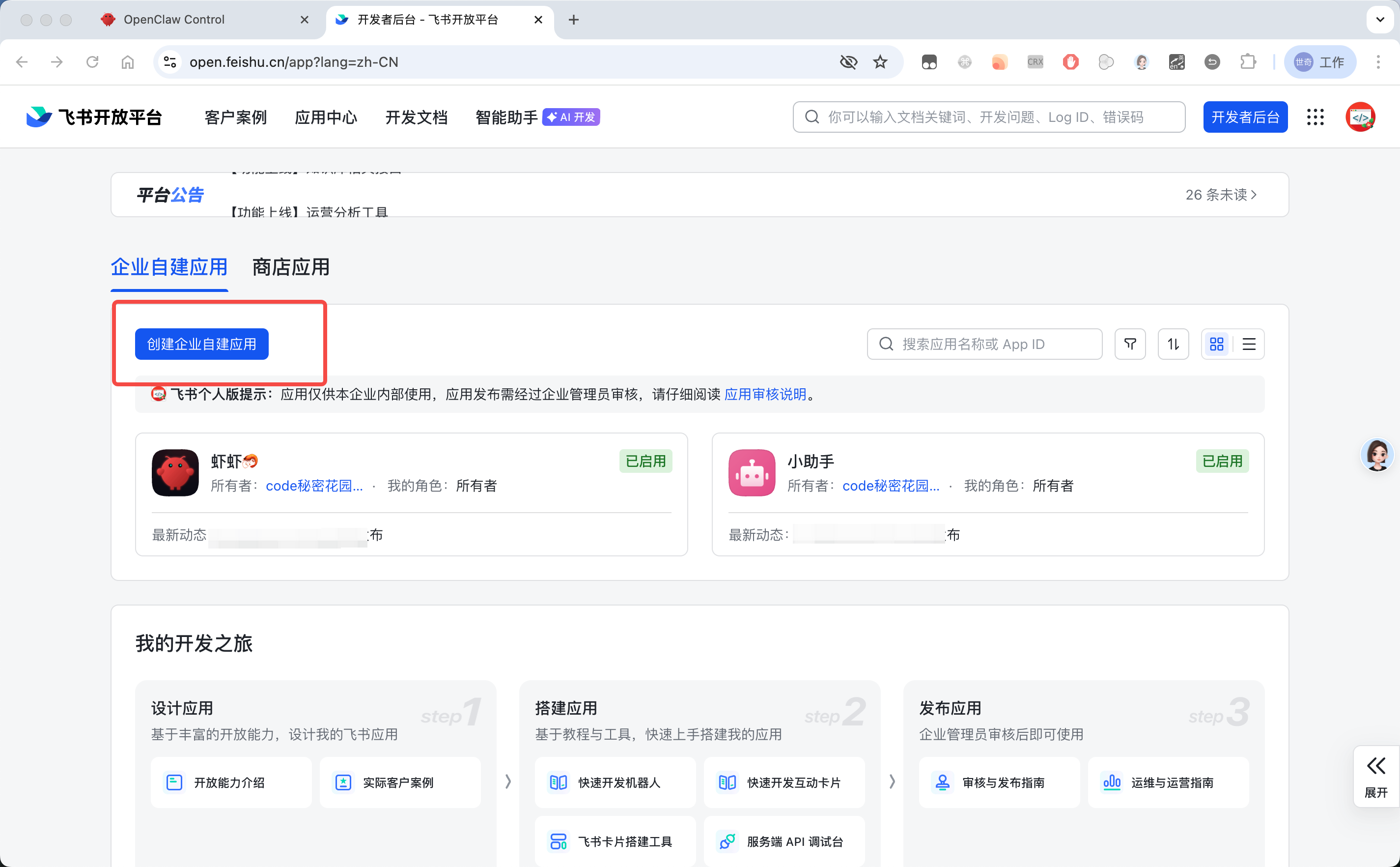
- Click "Create a custom app for your enterprise".
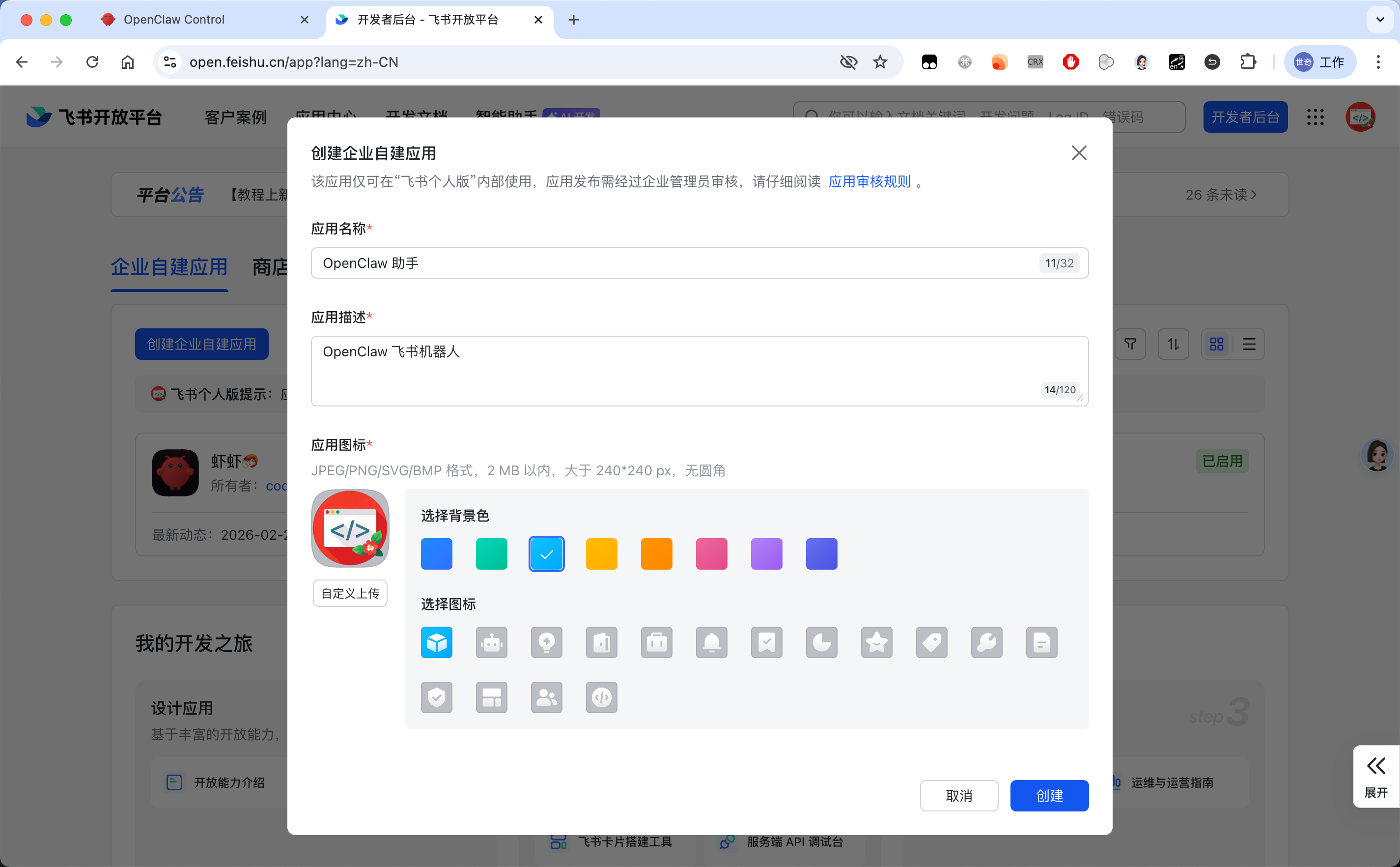
- Fill in an app name (for example,
OpenClaw Assistant), upload a dedicated avatar, and click "Create".
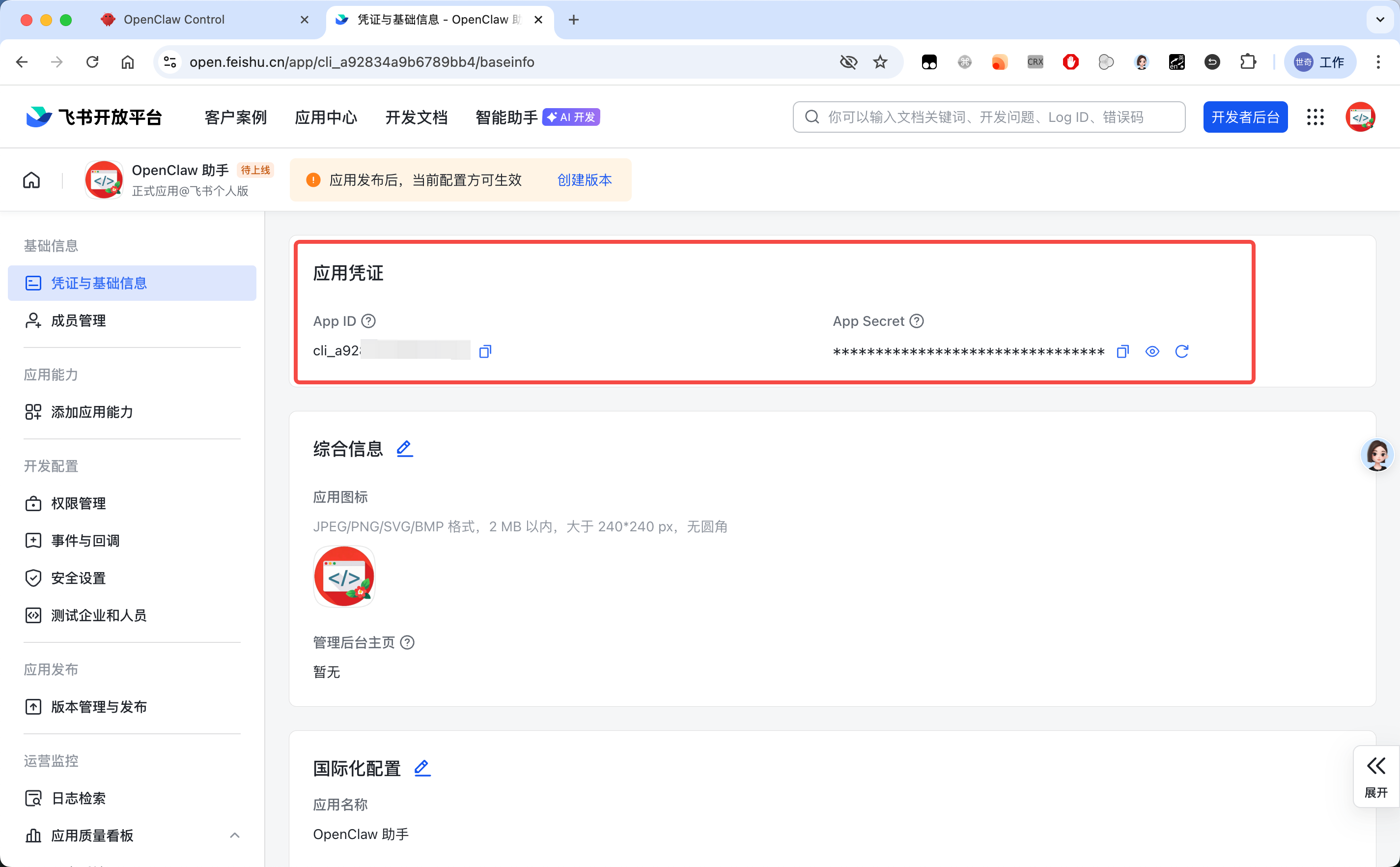
- Once created, you'll land in the app's developer console. In the left sidebar, click "Credentials & Basic Info".
- Find App ID and App Secret, copy them, and save them somewhere safe — you'll need them in OpenClaw shortly.
Enable Bot Capability and Permissions
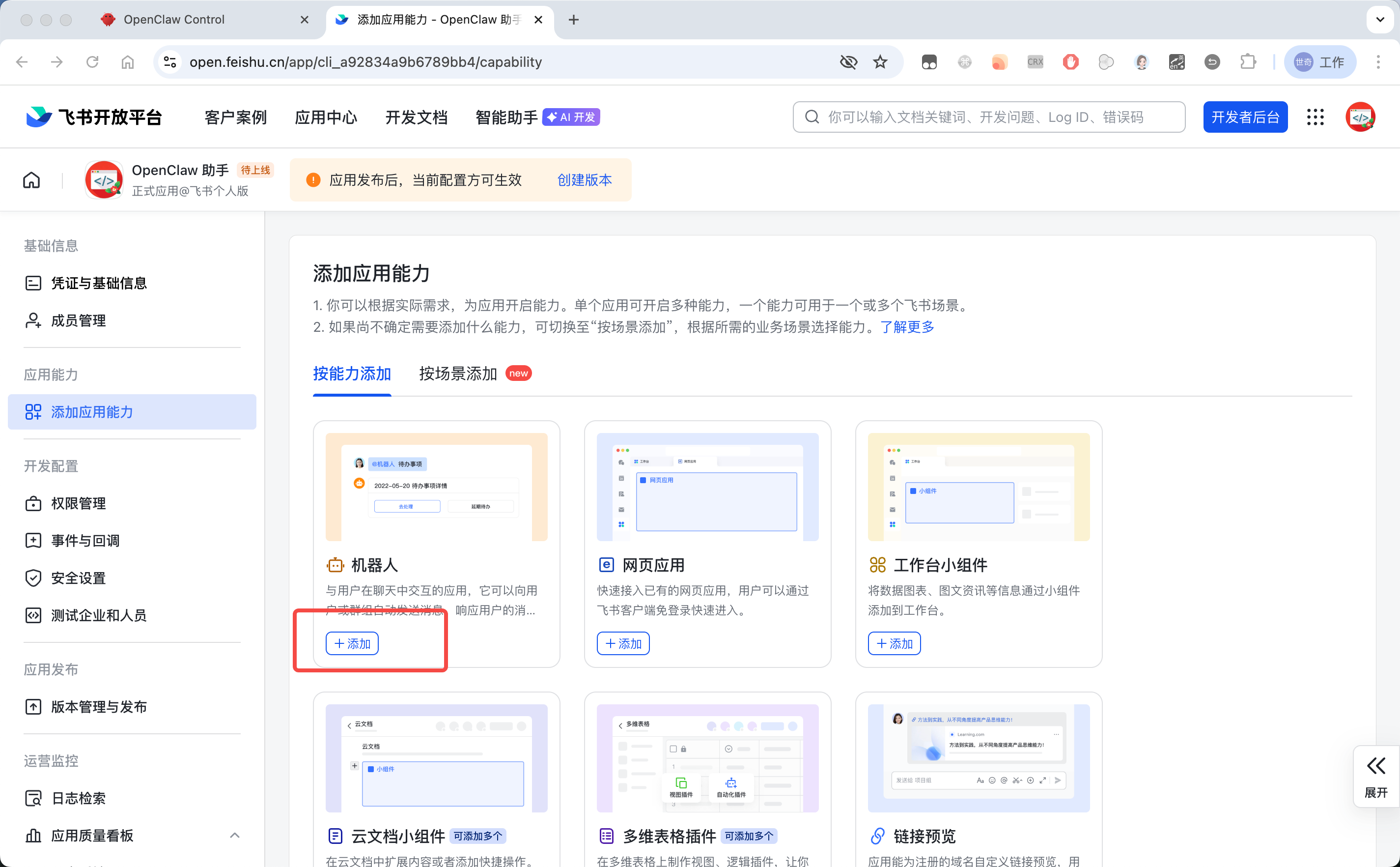
- In the left sidebar, click "Add app capabilities".
- Choose the "Bot" card and click "Add".
- In the left sidebar, open "Permissions".
- Your bot needs permissions to receive and send messages. We recommend enabling at least the following:
Read DM and group messages(im:message:readonly or im:message)Receive group messages/Receive DMs(im.message.receive_v1)Send messages as the app
Note: if OpenClaw later needs to read Feishu docs or sheets, you can add permissions like aily:file:read when prompted.For a faster setup, you can also use the bulk-import option:
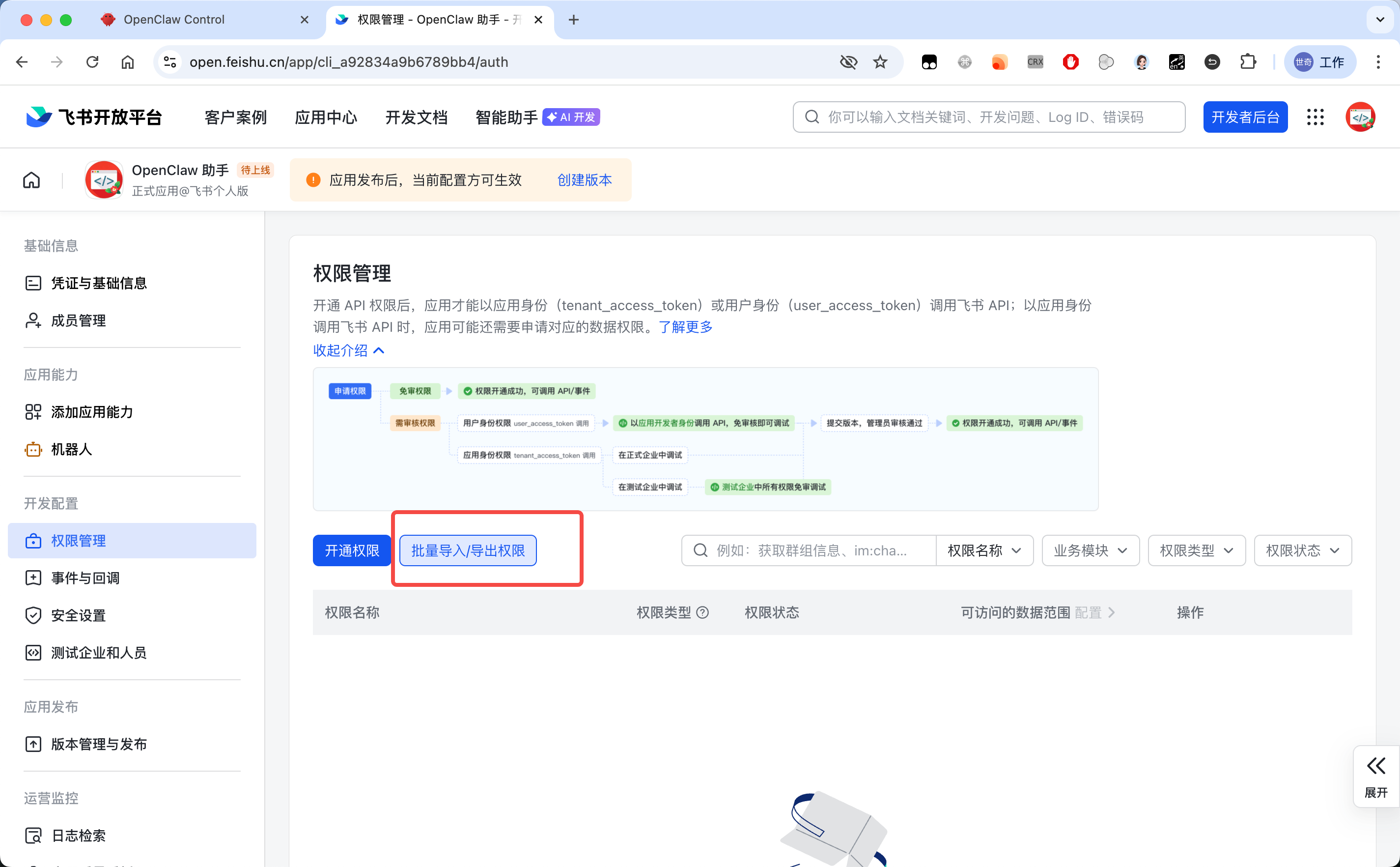
Then paste the JSON below into the editor:
{
  "scopes": {
    "tenant": [
      "aily:file:read",
      "aily:file:write",
      "application:application.app_message_stats.overview:readonly",
      "application:application:self_manage",
      "application:bot.menu:write",
      "cardkit:card:write",
      "contact:user.employee_id:readonly",
      "corehr:file:download",
      "docs:document.content:read",
      "event:ip_list",
      "im:chat",
      "im:chat.access_event.bot_p2p_chat:read",
      "im:chat.members:bot_access",
      "im:message",
      "im:message.group_at_msg:readonly",
      "im:message.group_msg",
      "im:message.p2p_msg:readonly",
      "im:message:readonly",
      "im:message:send_as_bot",
      "im:resource",
      "sheets:spreadsheet",
      "wiki:wiki:readonly"
    ],
    "user": ["aily:file:read", "aily:file:write", "im:chat.access_event.bot_p2p_chat:read"]
  }
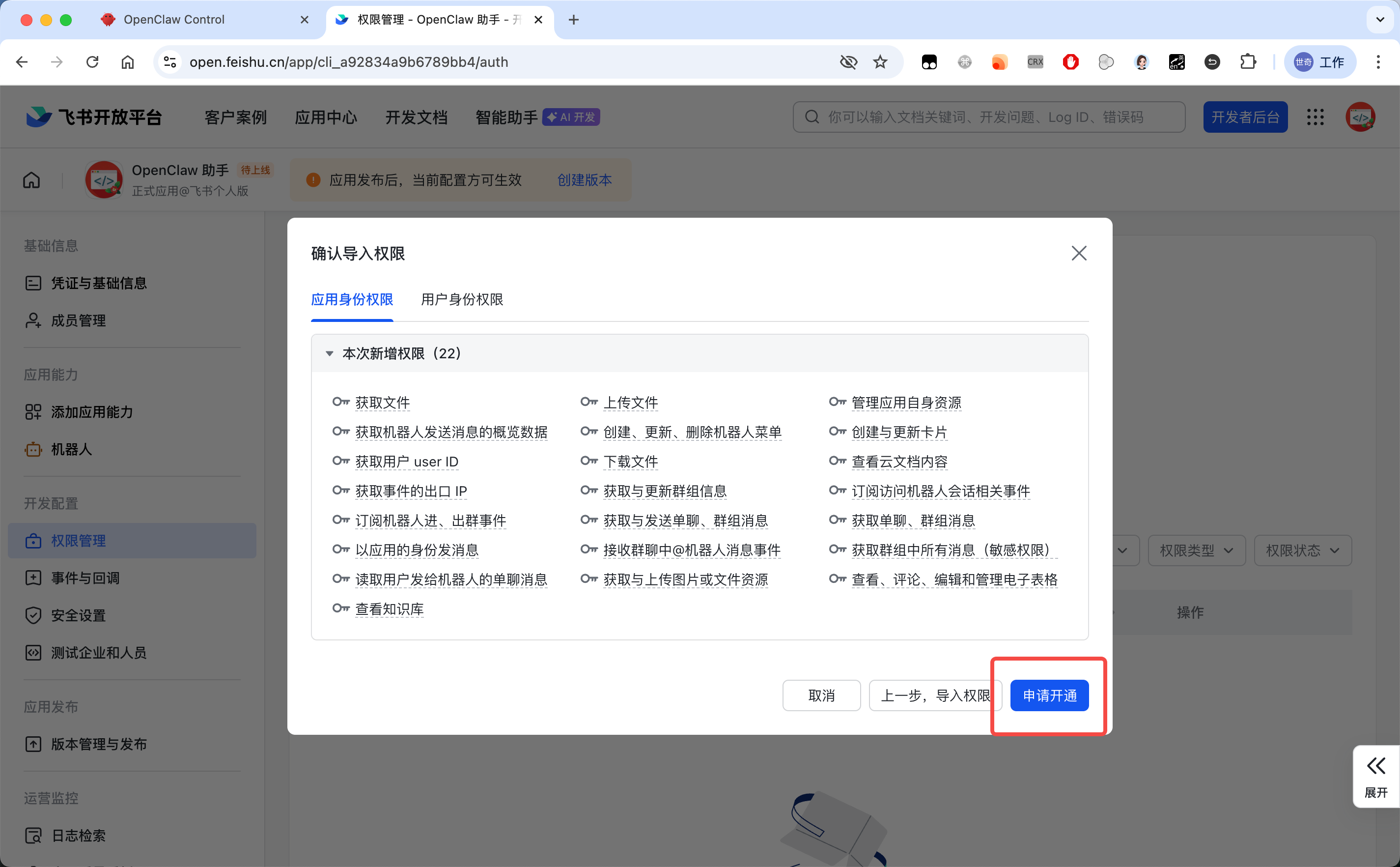
}- After pasting, click "Apply for approval" in the bottom right.
Publish the App for the First Time
With the configuration done, publish the app before doing anything else. (This step is mandatory — if you try to set up event subscriptions before publishing, the configuration will fail.)
Click "Create version" at the top, then fill in the version number, release notes, and so on:
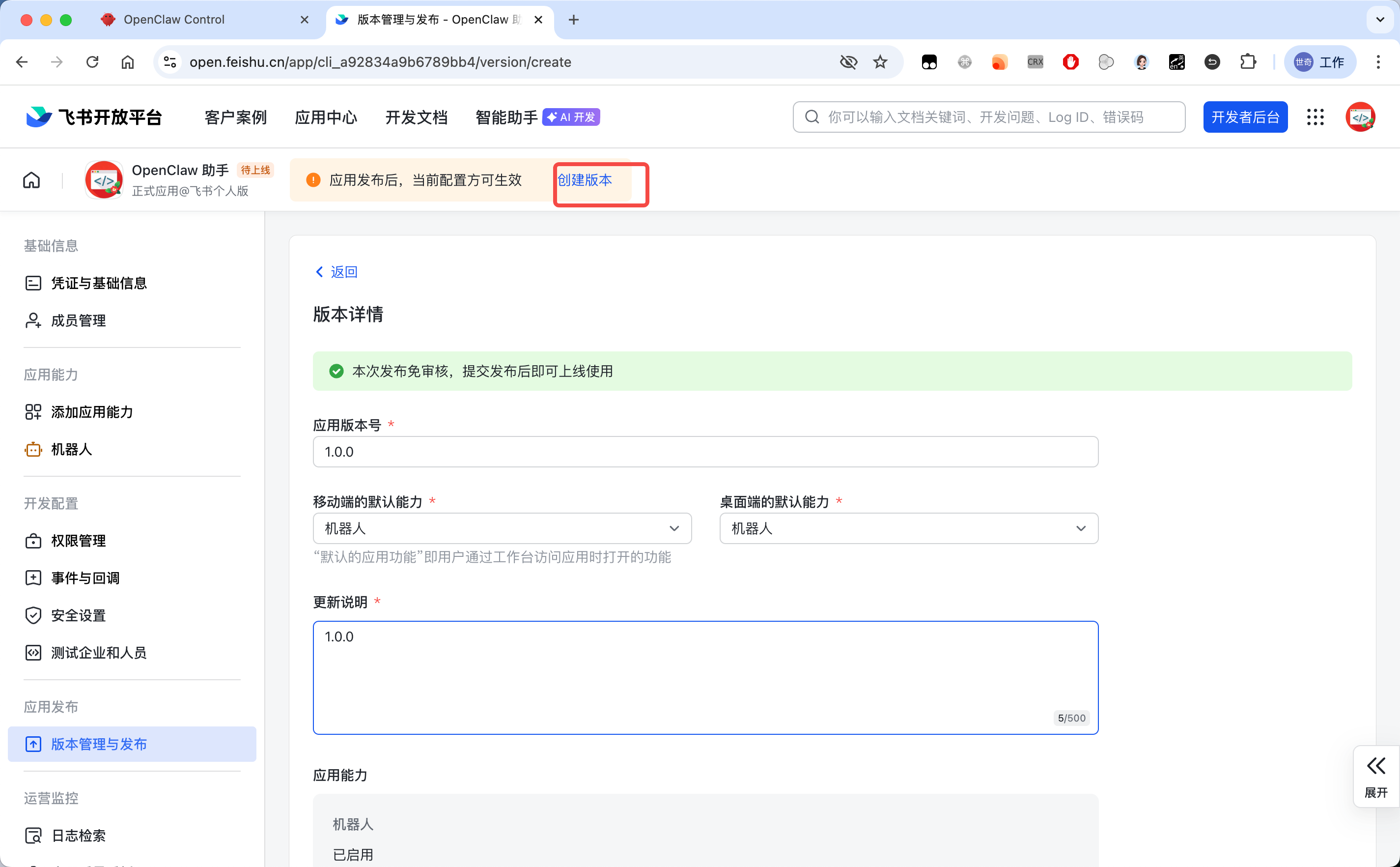
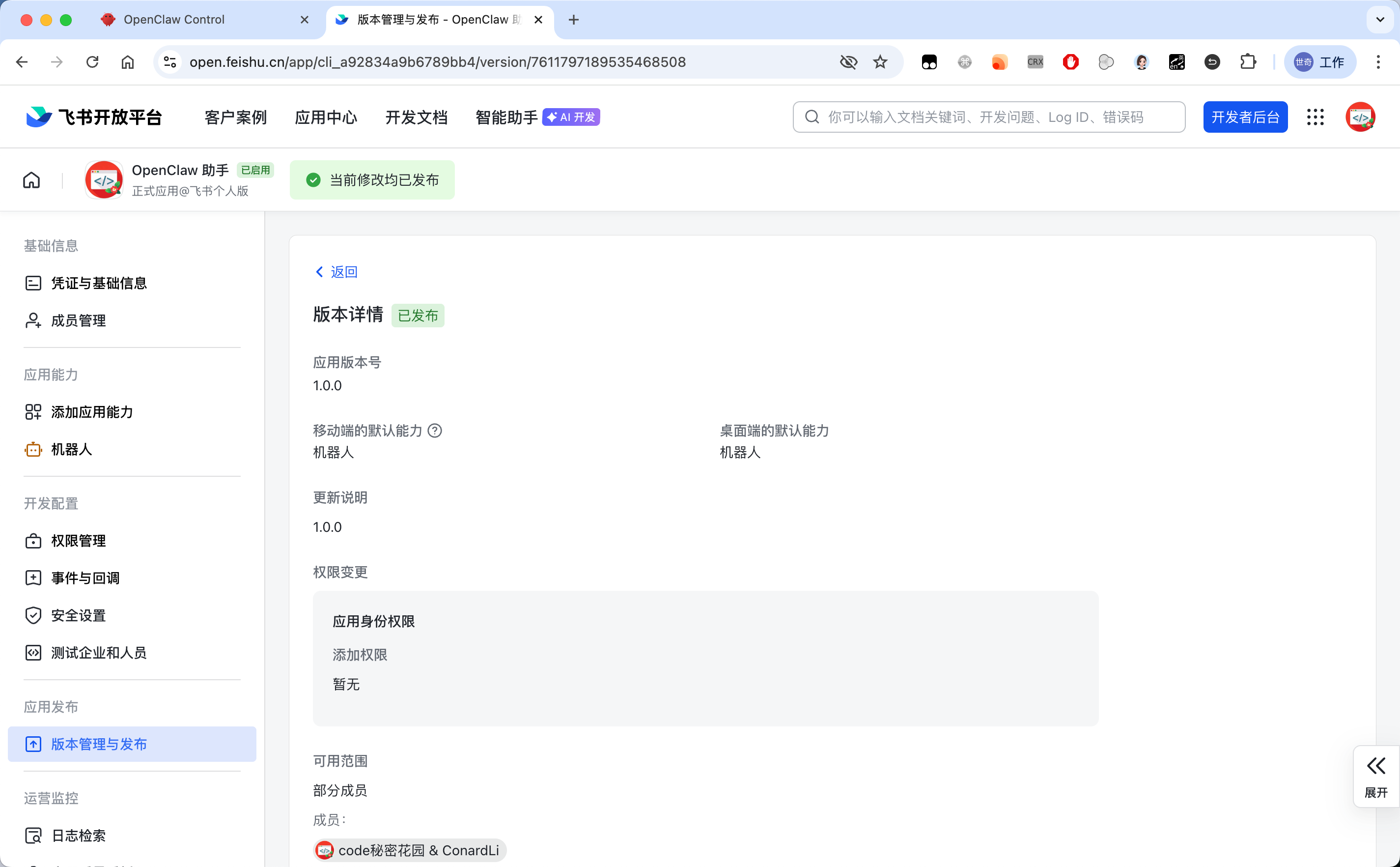
After it's created, click "Confirm publish" — once the status flips to Published, you're set:
Configure the Feishu Channel in OpenClaw
Now we hand the Feishu credentials over to OpenClaw. Open the configuration module's Raw mode and paste the snippet below, then replace appId, appSecret, and botName with the values from the app you just created:
{
  "channels": {
    "feishu": {
      "enabled": true,
      "domain": "feishu",
      "dmPolicy": "pairing",
      "mediaMaxMb": 30,
      "accounts": {
        "main": {
          "appId": "replace with your Feishu app's AppId",
          "appSecret": "replace with your Feishu app's Secret",
          "botName": "replace with your Feishu app's bot name"
        }
    }
  }
}
Then click Save and Update in the top right:
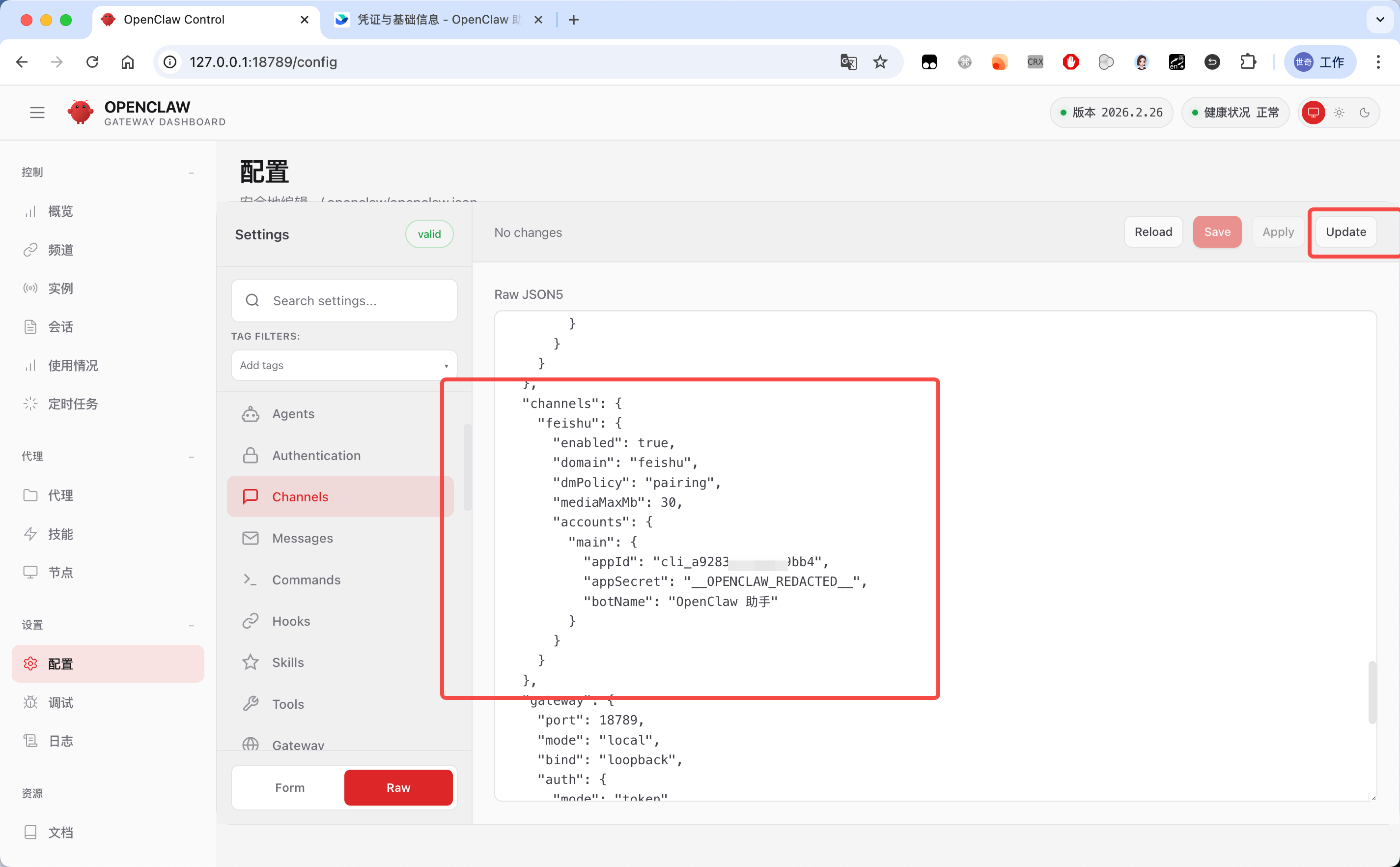
Note: even after this step, you still can't talk through Feishu yet — there's one more step: setting up event subscriptions.
Set Up Event Subscriptions
To let OpenClaw receive messages you send in Feishu in real time, we need to configure event subscriptions.
Since most local OpenClaw deployments don't have a public IP, we strongly recommend using Feishu's long-connection mode.
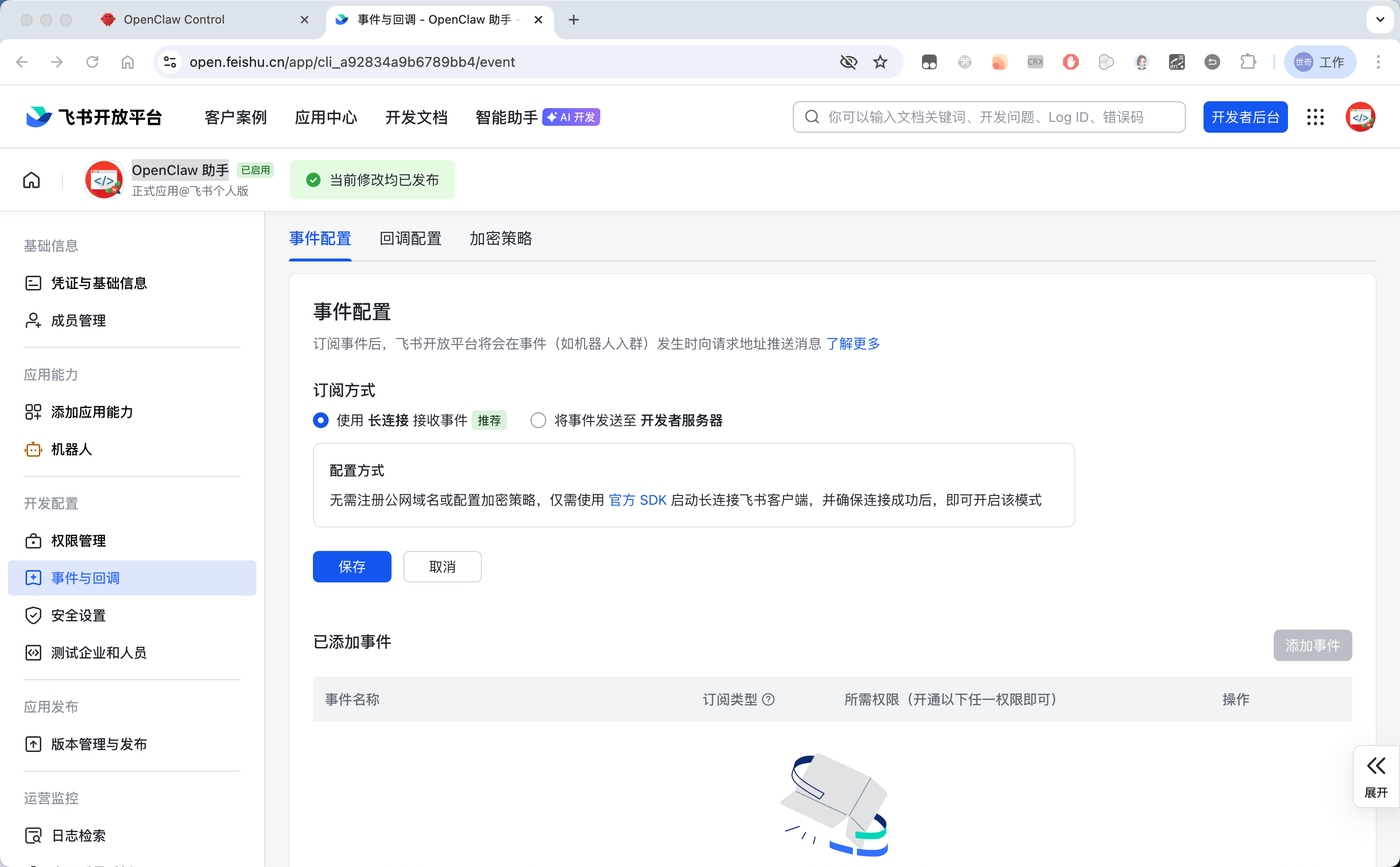
- In the left sidebar, click "Events & Callbacks".
- Under the "Event configuration" tab, click "Subscription method".
- Choose "Receive events via long connection" (WebSocket mode) and click Save.
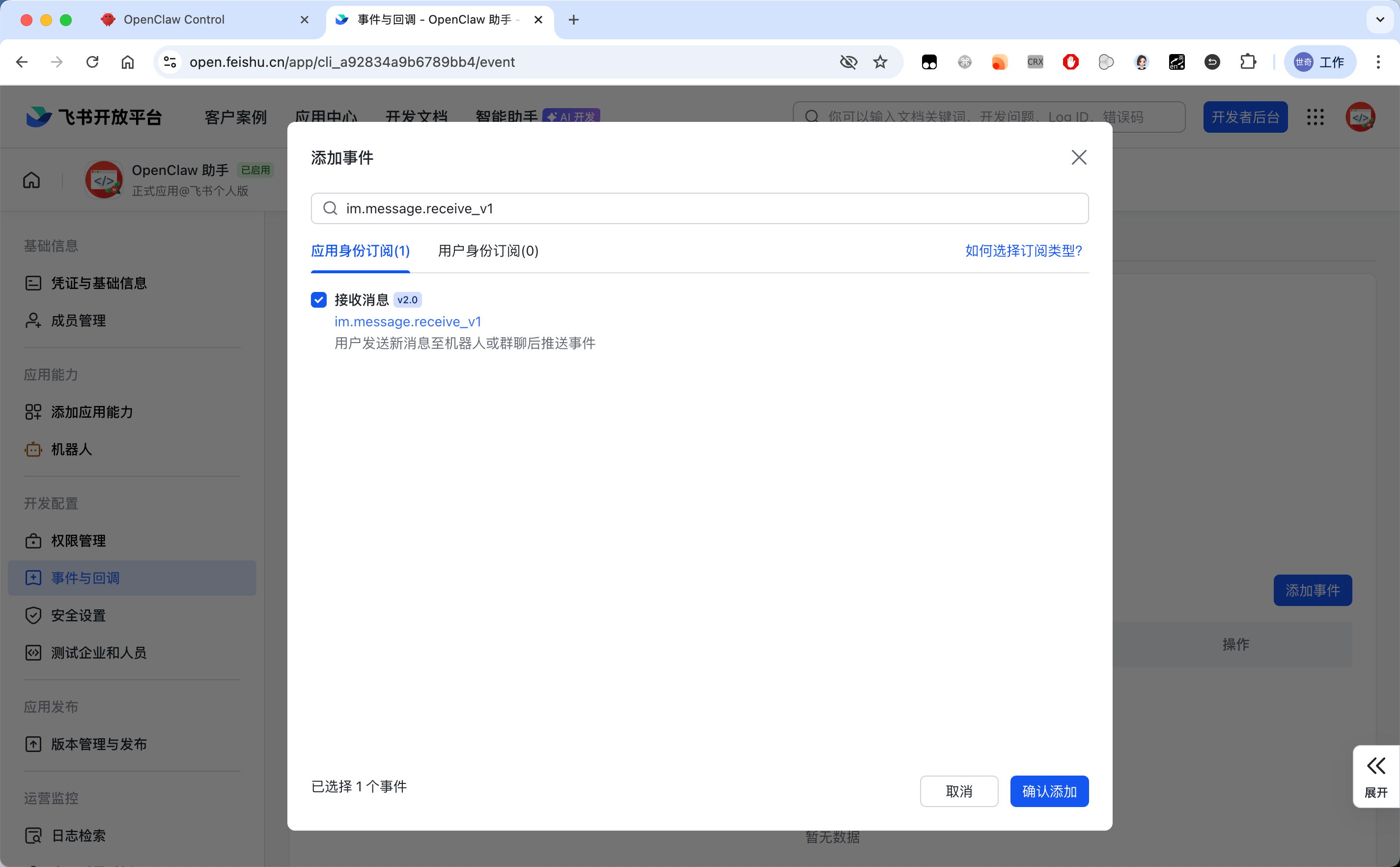
- Click "Add event", search for and check
Receive message (im.message.receive_v1), and confirm.
- Repeat similar steps for the bot callback configuration, again choosing the long-connection mode for receiving callbacks.
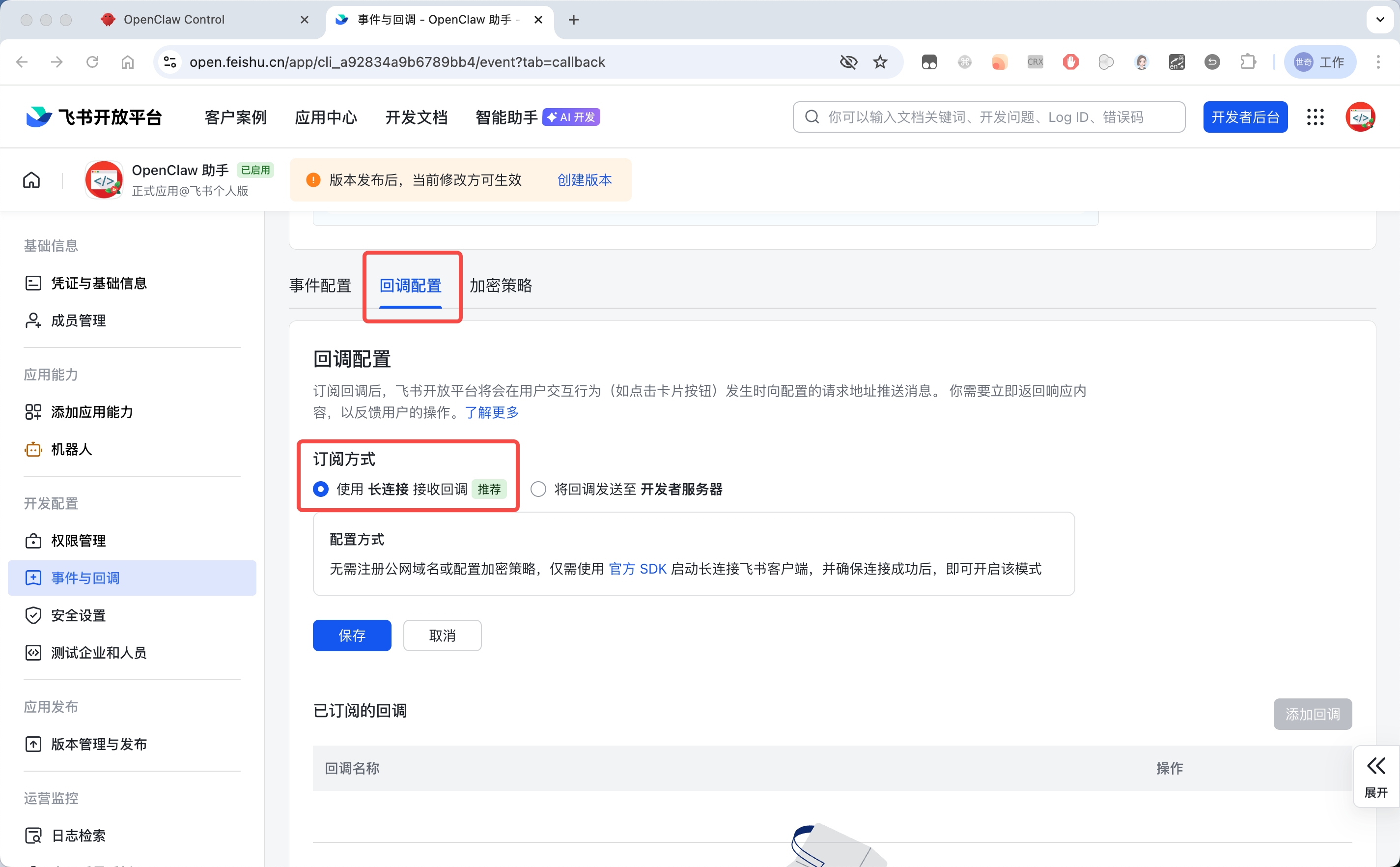
- Republish the app so the configuration changes take effect.
Pair and Test
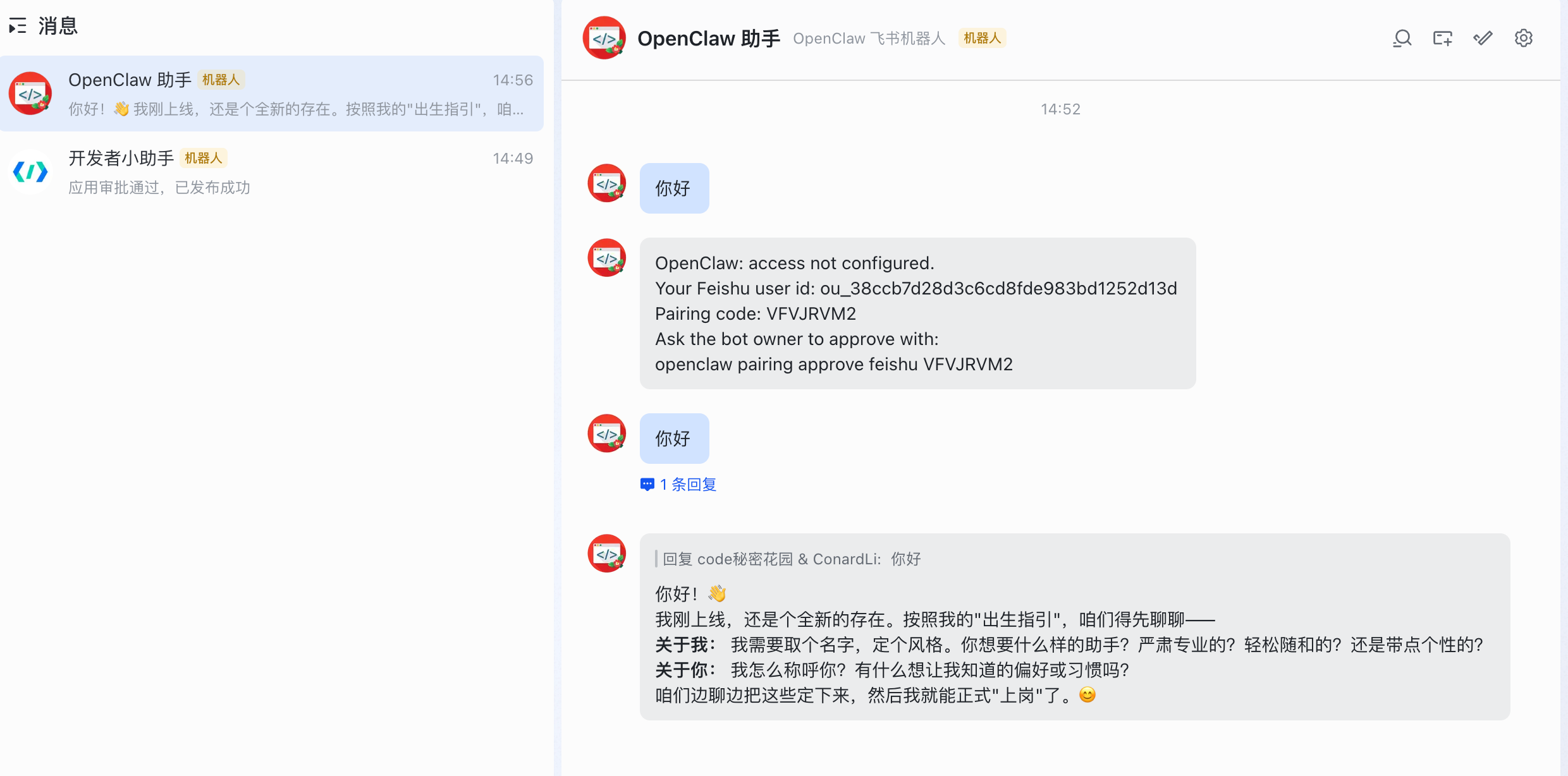
Once the publish completes, Feishu will send a notification. Click to open the app and start a conversation with the bot:
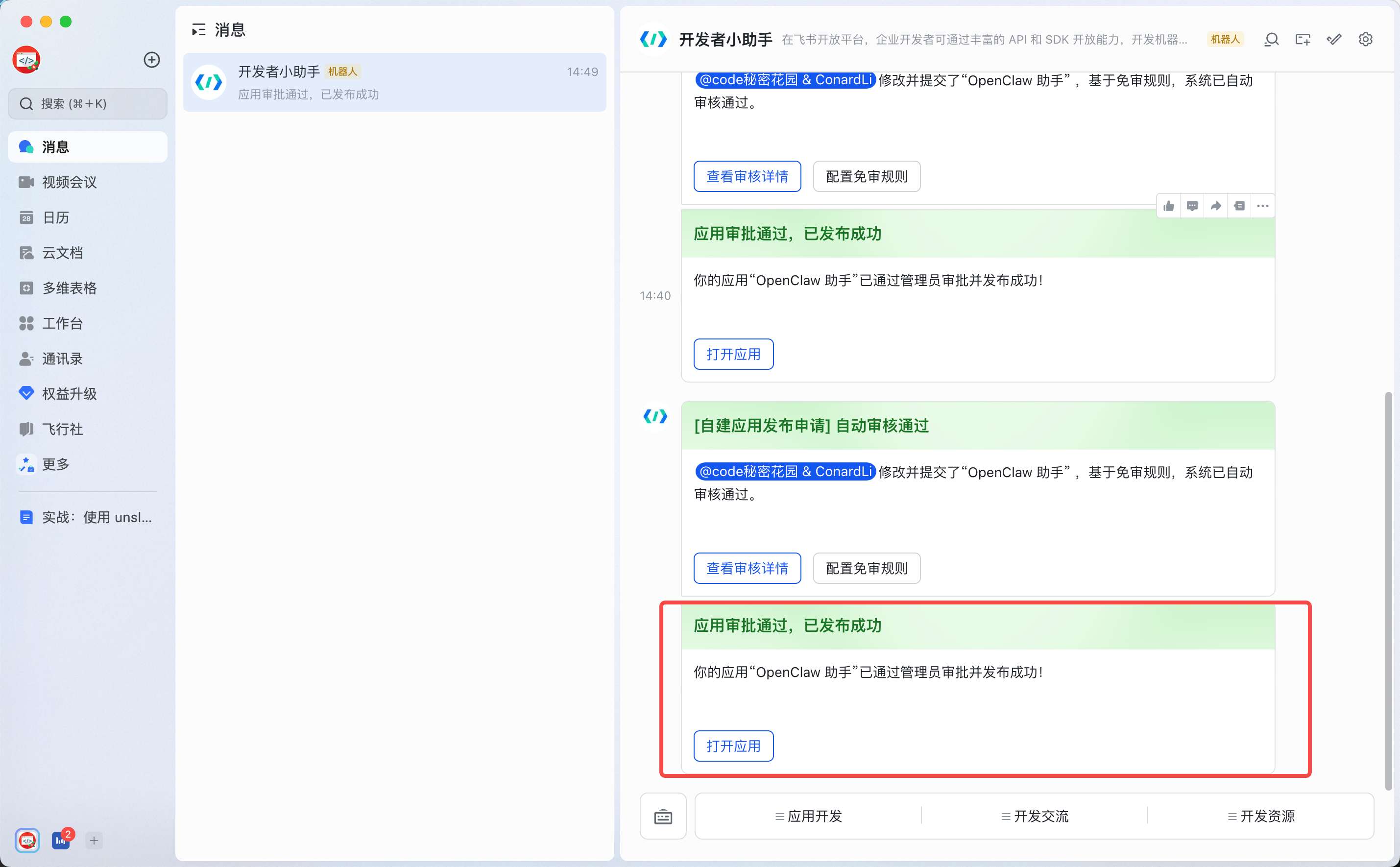
Under the default dmPolicy: pairing mode, unknown senders have to complete pairing before they can have a real conversation.
The first time you send a message, the bot will reply in the Feishu DM with a pairing prompt that contains a pairing code.
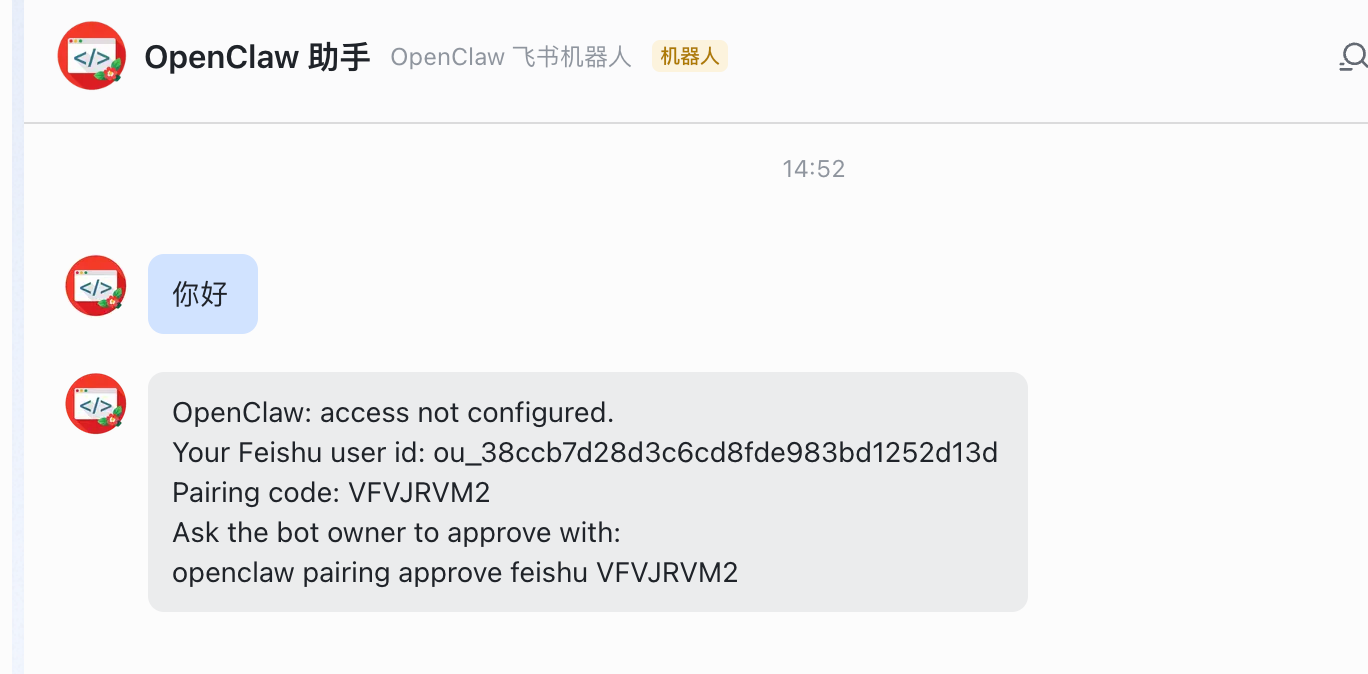
Copy the pairing command and run it in your terminal:
openclaw pairing approve feishu <pairing-code>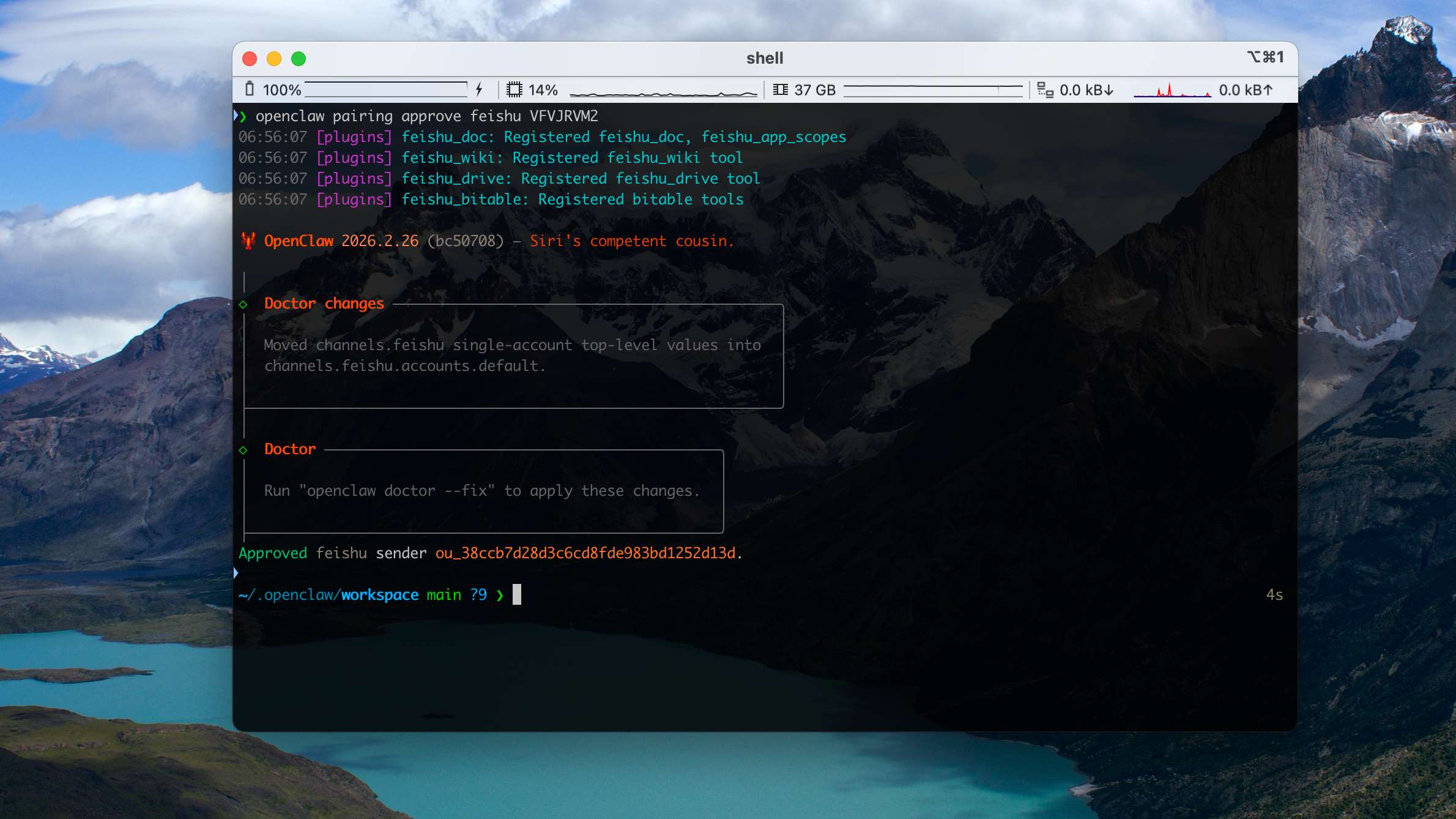
From here on, you can chat with OpenClaw directly inside Feishu: